
Internal notes stay internal
Keep office-only context separate from the cleaner summary that goes to customers.
Reduce paperwork mistakes
Try Door Ops free. No card. No automatic charge. Build better door-company software with us.
Free beta & paid plansOffice review workflow
The office should not have to hunt through every worksheet answer to know what happens next. Door Ops puts the review, edit, and send workflow in one place.
How it works
Real Door Ops screens from a sample door company. Review, edits and branded PDFs are on every plan; the AI summary is on Core and Plus.
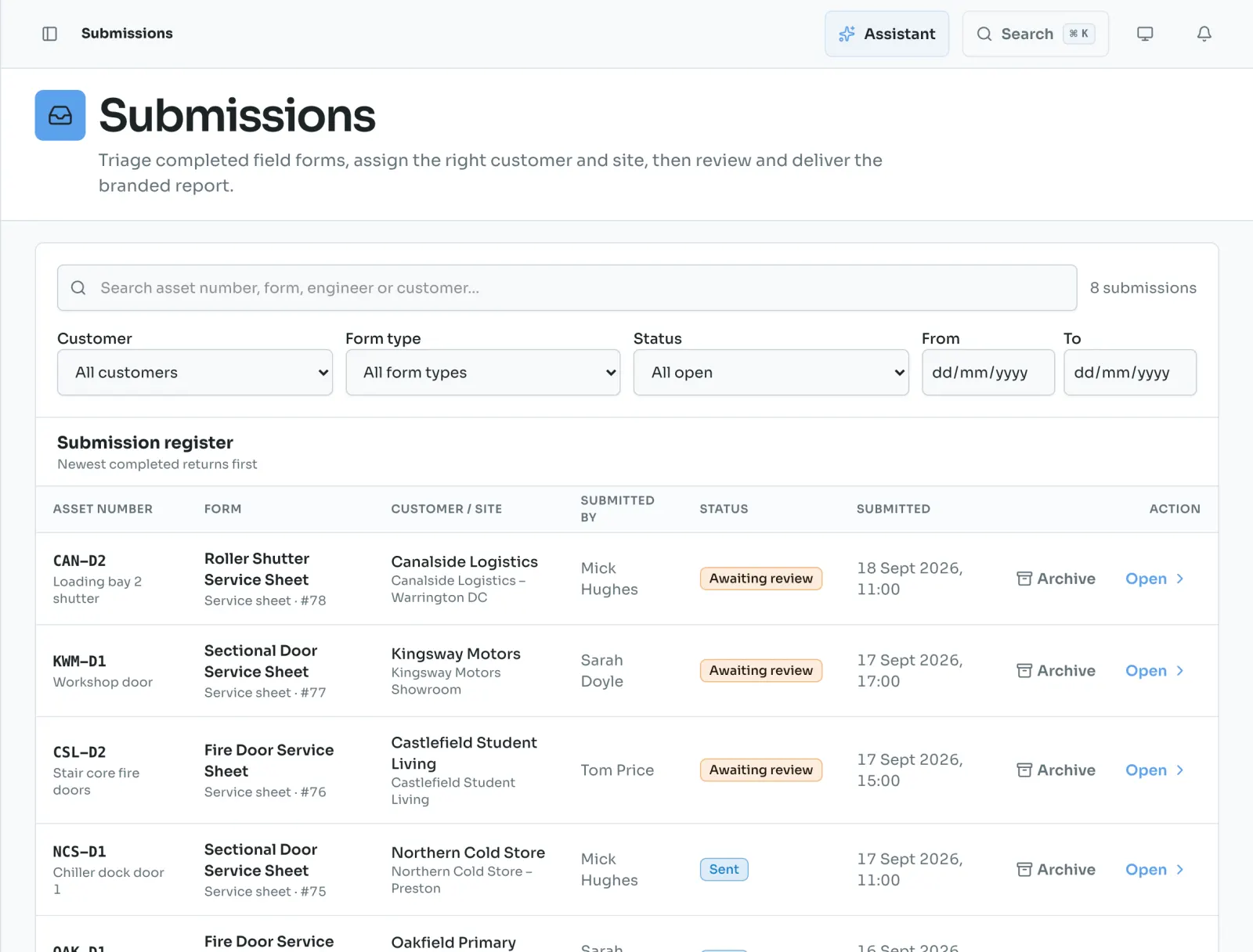
Every returned sheet lands in one register, newest first, and stays marked awaiting review until someone has checked it.
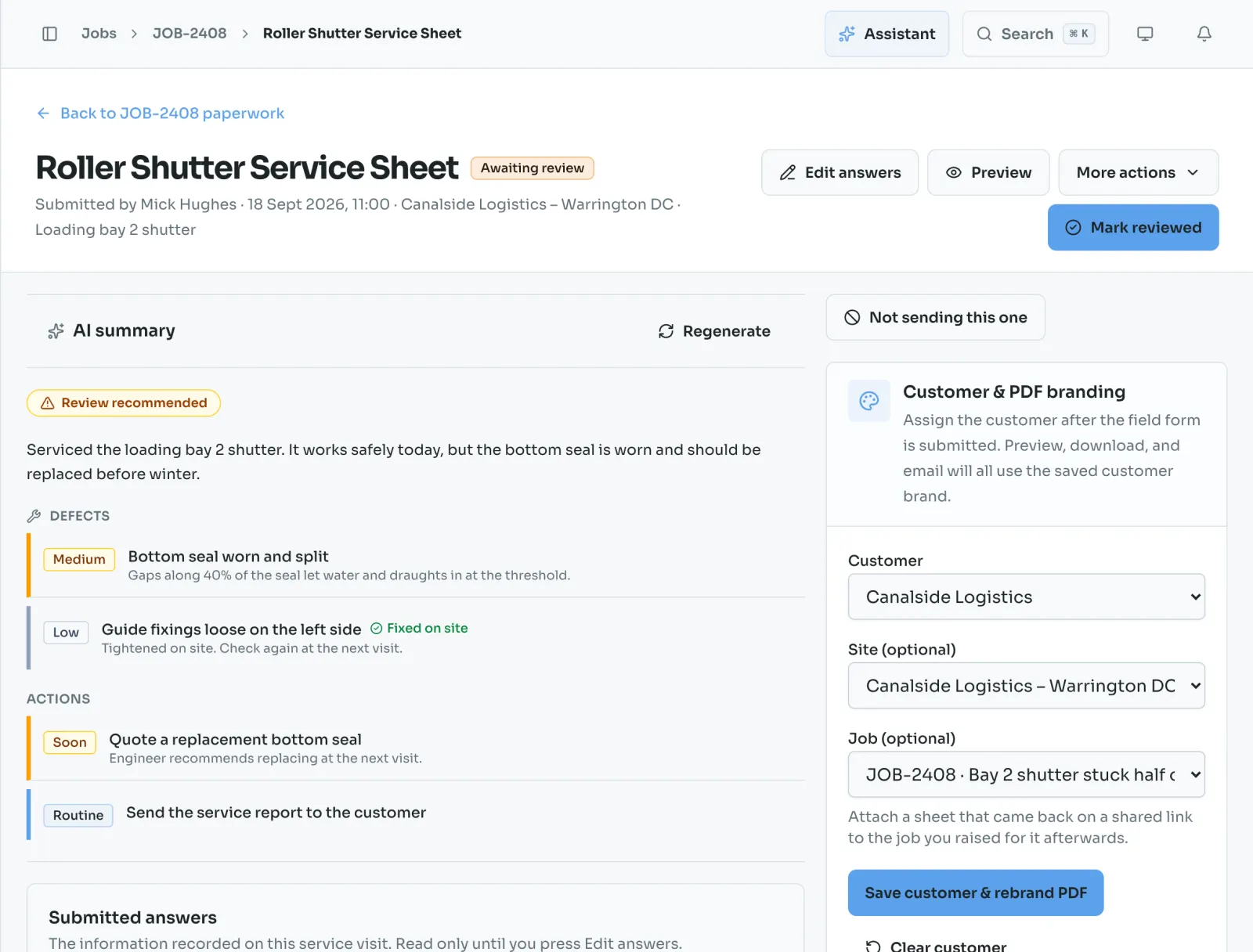
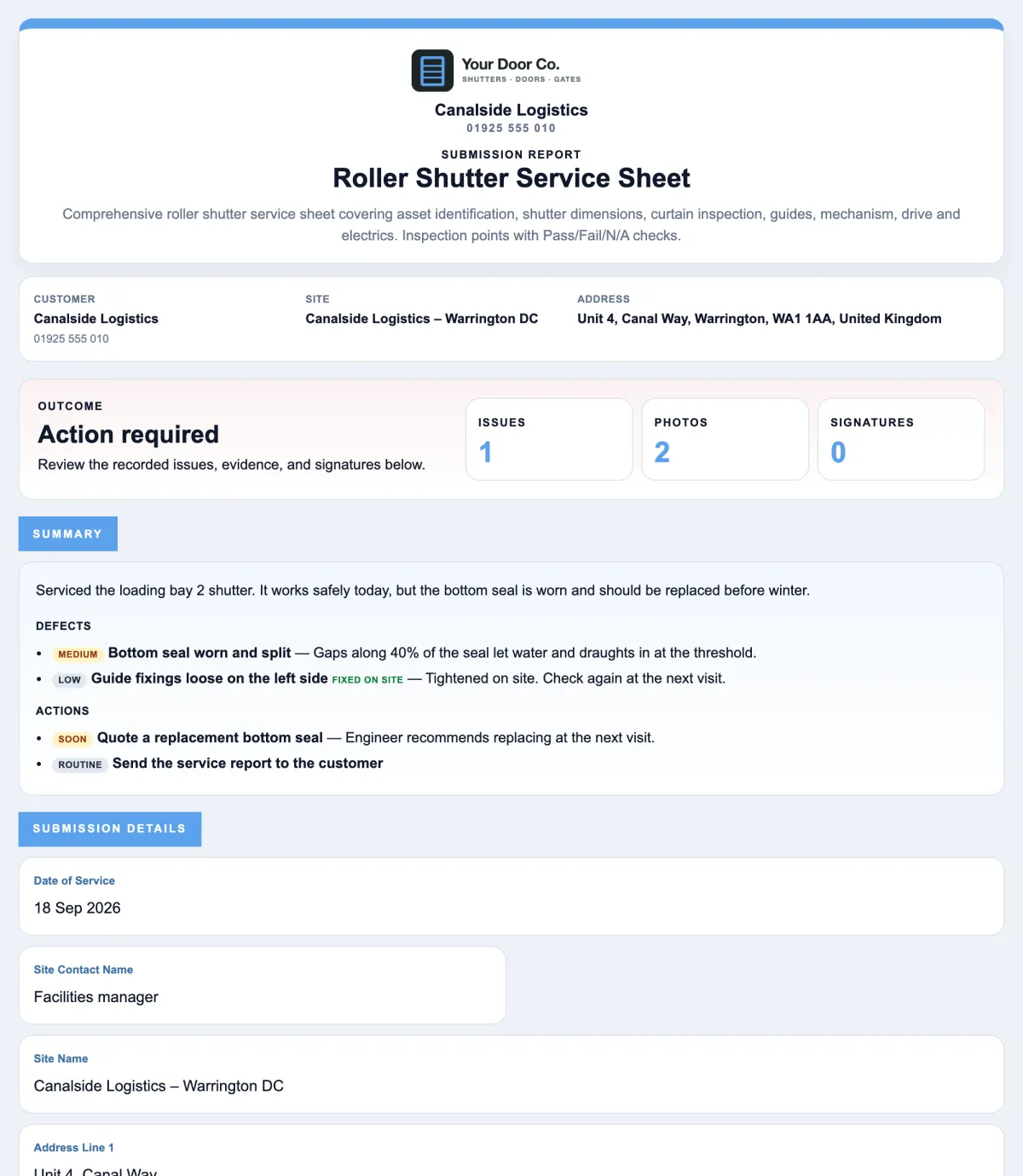
Door Ops sums up the visit in a line, lists the defects by severity and the actions by urgency, and marks anything fixed on site.
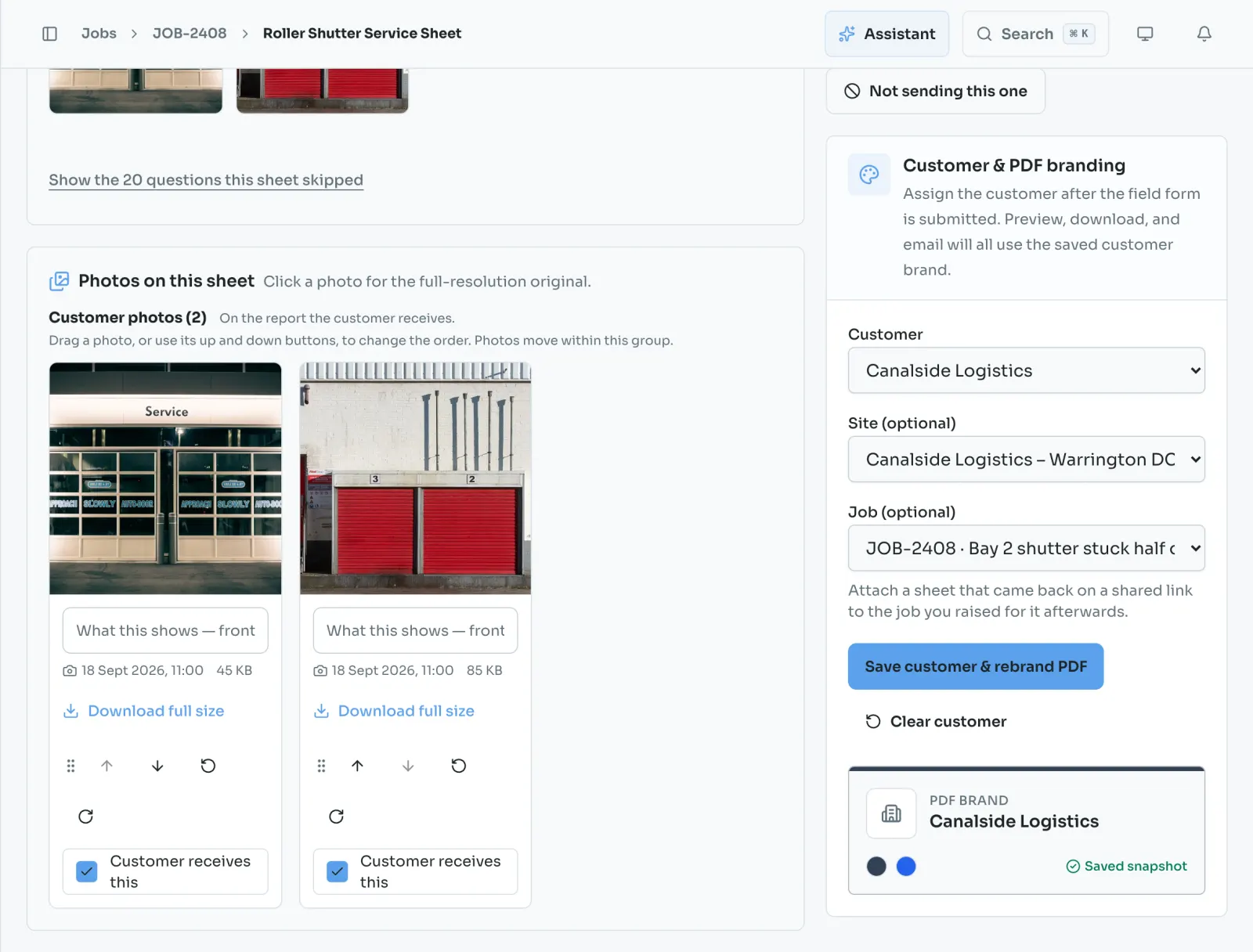
Open each photo at full size and choose which ones the customer gets. Drag them into the order you want.
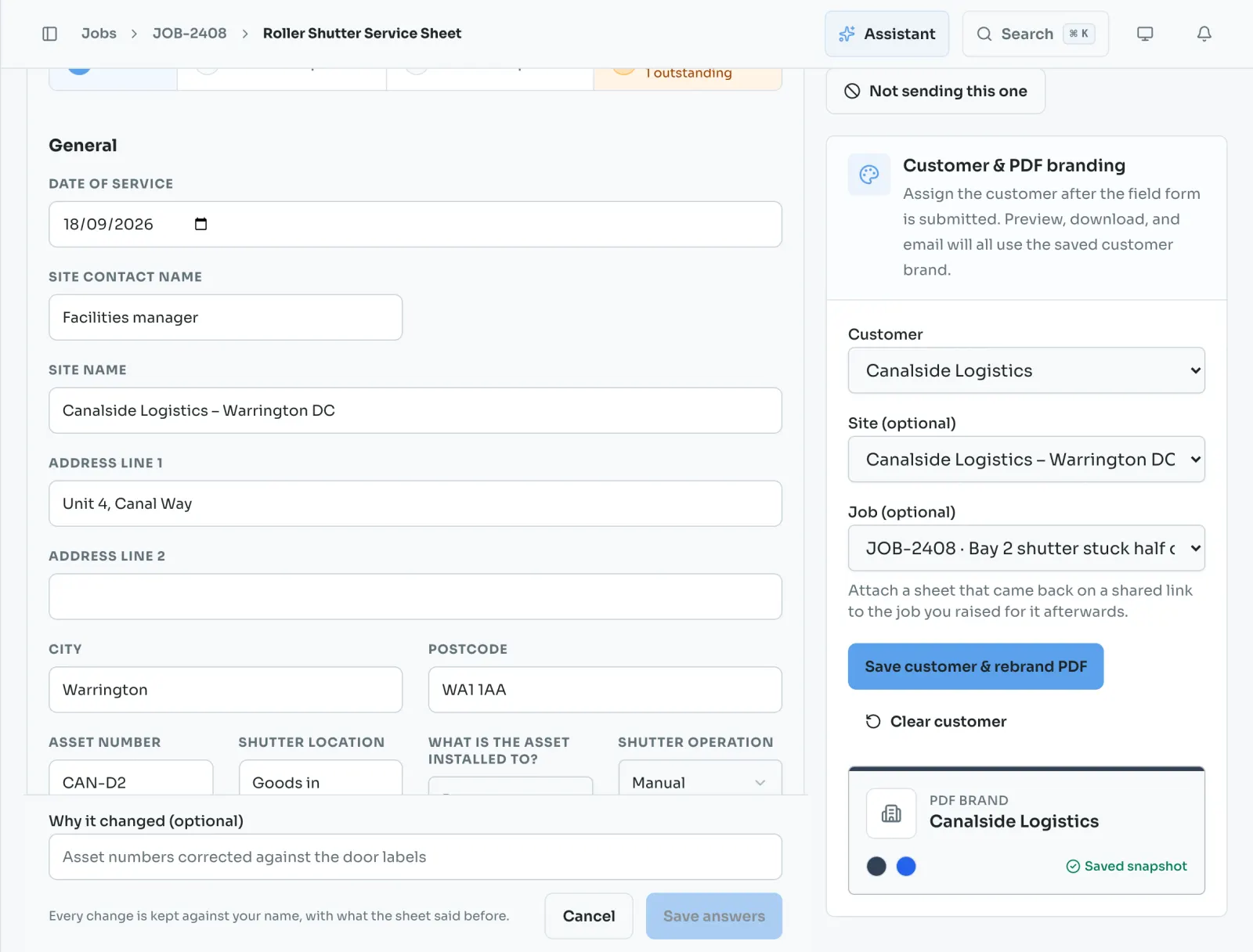
Correct an answer or tidy the engineer’s notes. Nothing changes until you save, and every change is kept with your name and what the sheet said before.
See the branded report exactly as the customer will, then download it or email it. If it was for internal use only, mark it as not sending.
Why it matters
Door Ops focuses on the live workflow that saves time now: capture the worksheet, review the summary, send the paperwork.
Keep office-only context separate from the cleaner summary that goes to customers.
Reduce paperwork mistakes
Fix wording, tidy engineer notes, and decide what customers should see before the PDF is sent.
Office control
Track what has been submitted, reviewed, edited, downloaded, or sent.
Submission history
Yes. Door Ops is designed for office review before customer paperwork is sent.
Yes. Internal and customer-facing notes are separated in the review workflow.
Office managers, coordinators, and admin staff handling worksheet review, follow-ups, and customer paperwork.
Create a Door Ops form from a preset, collect the worksheet from site, review the AI summary, and send a branded PDF. Try Door Ops free for 30 days.